Containers
Docker and Docker Compose on Ubuntu and Debian: install and first deployment
Install Docker and Docker Compose on Ubuntu and Debian, learn images, containers, volumes and networks, and deploy a web and database stack step by step.
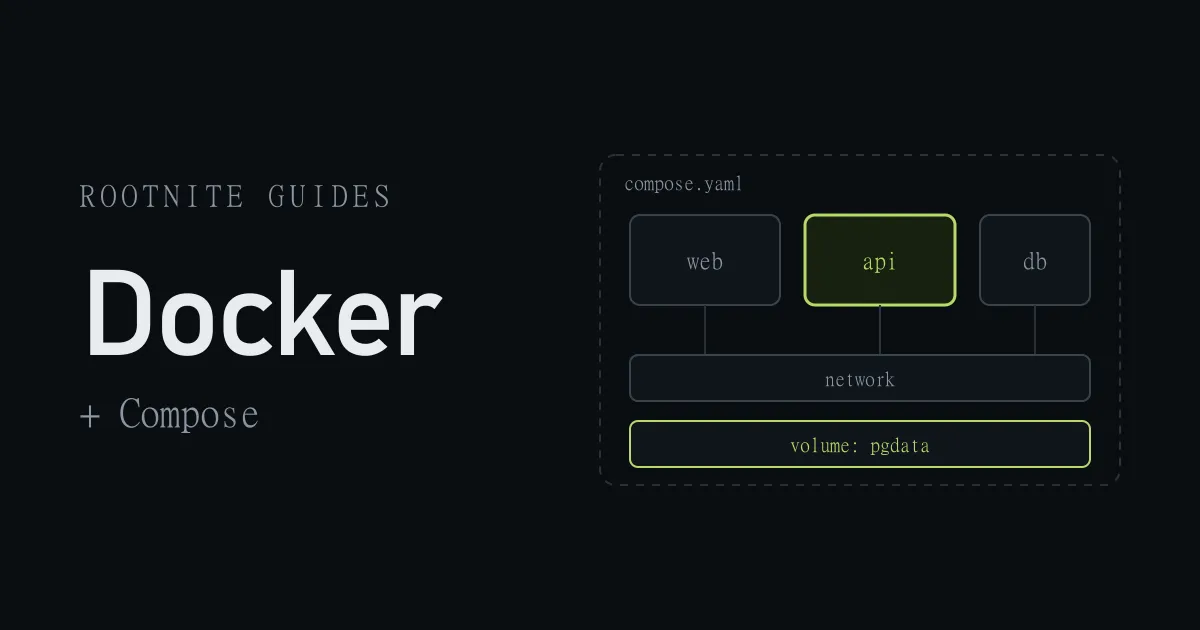
Docker packages an application and everything it needs to run (runtime, libraries, configuration) into a unit that behaves the same on your laptop, on a staging server and in production. Docker Compose describes several of those containers in one file and starts them together.
This guide is written for developers who already work with a Linux server (SSH, apt, systemd, file permissions). We will install Docker Engine and the Compose plugin on Ubuntu and Debian from the official repository, explain the concepts you actually need to understand, and deploy a stack with a web server and a database.
Core concepts before installing
Most Docker problems come from mixing up these terms.
| Concept | What it is | Analogy |
|---|---|---|
| Image | Read-only template with the file system and startup configuration of an application. Built in layers. | A class |
| Container | A running instance of an image: an isolated process with its own file system, network and users. | An object |
| Registry | Service where images are published and pulled from. Docker Hub is the default public one. | npm or PyPI, but for images |
| Volume | Docker-managed storage that outlives the container. | An external disk |
| Bind mount | A host folder mounted inside the container. | A shortcut to your folder |
| Network | Virtual network connecting containers; inside it they resolve each other by service name. | A private VLAN |
| Dockerfile | Recipe to build an image. | A build script |
| Compose | YAML file defining the services, networks and volumes of an application. | A stack manifest |
Three ideas worth fixing in your head:
- A container is not a virtual machine. It shares the host kernel. It starts in milliseconds and weighs megabytes, not gigabytes.
- A container’s file system is ephemeral. If you remove and recreate it, what you wrote inside is lost. Any data that matters goes in a volume.
- Images are immutable. You do not update a running container in place: you pull or build a new image and recreate the container.
Requirements
- Ubuntu 22.04, 24.04 or later, or Debian 12 (bookworm) or later, 64-bit.
- A user with
sudorights. - Internet access to download packages and images.
Supported versions change over time: check the list in the official install documentation.
Step 1. Remove conflicting packages
The docker.io, docker-compose and podman-docker packages from the distribution repositories clash with the official ones. If they exist, remove them (this does not delete your images or volumes):
sudo apt remove $(dpkg --get-selections docker.io docker-compose docker-compose-v2 docker-doc podman-docker containerd runc | cut -f1)If apt says nothing is installed, that is fine.
Step 2. Add Docker’s official repository
Pick the block for your distribution. Both install the GPG key and register the repository.
Ubuntu
sudo apt update
sudo apt install -y ca-certificates curl
sudo install -m 0755 -d /etc/apt/keyrings
sudo curl -fsSL https://download.docker.com/linux/ubuntu/gpg -o /etc/apt/keyrings/docker.asc
sudo chmod a+r /etc/apt/keyrings/docker.asc

sudo tee /etc/apt/sources.list.d/docker.sources <<EOF
Types: deb
URIs: https://download.docker.com/linux/ubuntu
Suites: $(. /etc/os-release && echo "${UBUNTU_CODENAME:-$VERSION_CODENAME}")
Components: stable
Architectures: $(dpkg --print-architecture)
Signed-By: /etc/apt/keyrings/docker.asc
EOF

sudo apt update
Debian
sudo apt update
sudo apt install -y ca-certificates curl
sudo install -m 0755 -d /etc/apt/keyrings
sudo curl -fsSL https://download.docker.com/linux/debian/gpg -o /etc/apt/keyrings/docker.asc
sudo chmod a+r /etc/apt/keyrings/docker.asc

sudo tee /etc/apt/sources.list.d/docker.sources <<EOF
Types: deb
URIs: https://download.docker.com/linux/debian
Suites: $(. /etc/os-release && echo "$VERSION_CODENAME")
Components: stable
Architectures: $(dpkg --print-architecture)
Signed-By: /etc/apt/keyrings/docker.asc
EOF

sudo apt update
The only differences are the URL (ubuntu or debian) and the release codename. On an Ubuntu derivative (Linux Mint, for example), UBUNTU_CODENAME points to the correct base.
Step 3. Install Docker Engine and Compose
sudo apt install -y docker-ce docker-ce-cli containerd.io docker-buildx-plugin docker-compose-pluginWhat each package does:
docker-ce: the daemon (dockerd) that manages images and containers.docker-ce-cli: thedockercommand.containerd.io: the runtime that actually runs the containers.docker-buildx-plugin: advanced image builds (docker buildx).docker-compose-plugin: Compose v2, used asdocker compose(with a space, not a hyphen).
On Ubuntu and Debian the service starts and is enabled automatically. Check it:
sudo systemctl status docker --no-pager
docker --version
docker compose version
Step 4. Use Docker without sudo
The Docker socket belongs to the docker group. Add your user and reload the session:
sudo usermod -aG docker $USER
newgrp docker
Security warning. Membership in the
dockergroup is equivalent to root access on that machine: whoever controls the daemon can mount any host folder into a container. Add only trusted users, and avoid it on shared servers.
Step 5. Verify the installation
docker run --rm hello-worldDocker does not find the hello-world image locally, pulls it from Docker Hub, creates a container, prints a message and, because of --rm, removes the container when it exits. If you see “Hello from Docker!”, everything works.
Essential commands
These cover 90% of daily work:
docker pull nginx:1.27          # download an image
docker images                   # list local images
docker run -d --name web -p 8080:80 nginx:1.27   # create and start a container
docker ps                       # running containers (-a includes stopped ones)
docker logs -f web              # follow logs
docker exec -it web sh          # open a shell inside the container
docker stop web && docker rm web   # stop and remove
docker rmi nginx:1.27           # remove an image
What each docker run option does:
-druns in the background (detached).--name webgives it a name so you do not depend on a random ID.-p 8080:80publishes container port 80 on host port 8080 (host:container).--rmremoves the container when it stops.
Always pin a version tag (nginx:1.27) and avoid latest in production: latest changes without notice and breaks reproducible deployments.
Persistent data: volumes and bind mounts
Because a container’s file system is ephemeral, there are two ways to keep data:
| Volume | Bind mount | |
|---|---|---|
| Managed by | Docker (/var/lib/docker/volumes) |
You, a host path |
| Typical use | Databases, application data | Source code in development, config files |
| Portability | High; independent of host layout | Depends on the path existing |
| Permissions | Handled by Docker | Those of the host user and files |
docker volume create pgdata
docker run -d --name db -v pgdata:/var/lib/postgresql/data -e POSTGRES_PASSWORD=secret postgres:17
docker rm -f db                       # you remove the container...
docker run -d --name db2 -v pgdata:/var/lib/postgresql/data -e POSTGRES_PASSWORD=secret postgres:17   # ...and the data is still there
To inspect and clean up:
docker volume ls
docker volume inspect pgdata
docker volume rm pgdata     # irreversible: deletes the data
Networking between containers
Docker creates a default virtual network, but the useful way to connect services is a user-defined network: containers find each other by name through internal DNS. Compose creates one per project automatically, so the web service can reach the database with the host name db, with no IP addresses.
Publish with -p only the ports that must be reachable from outside. A database almost never belongs on the public internet.
Deployment example: web server with PostgreSQL
We will start two services: Nginx serving a static page and PostgreSQL with persistent data. It is a minimal pattern you can use as a template for real applications (replace Nginx with your API).
Project layout
my-stack/
├── compose.yaml
├── .env
└── html/
    └── index.html
mkdir -p my-stack/html && cd my-stack
echo '<h1>Hello from Docker</h1>' > html/index.htmlEnvironment variables
Secrets do not go inside compose.yaml. Keep them in .env, which Compose reads automatically, and do not commit it to the repository.
cat > .env <<'EOF'
POSTGRES_USER=app
POSTGRES_PASSWORD=change-this-password
POSTGRES_DB=appdb
WEB_PORT=8080
EOF
chmod 600 .env
echo ".env" >> .gitignore
The compose.yaml file
services:
  web:
    image: nginx:1.27-alpine
    ports:
      - "${WEB_PORT}:80"
    volumes:
      - ./html:/usr/share/nginx/html:ro
    depends_on:
      db:
        condition: service_healthy
    restart: unless-stopped

  db:
    image: postgres:17-alpine
    environment:
      POSTGRES_USER: ${POSTGRES_USER}
      POSTGRES_PASSWORD: ${POSTGRES_PASSWORD}
      POSTGRES_DB: ${POSTGRES_DB}
    volumes:
      - pgdata:/var/lib/postgresql/data
    healthcheck:
      test: ["CMD-SHELL", "pg_isready -U $${POSTGRES_USER} -d $${POSTGRES_DB}"]
      interval: 10s
      timeout: 5s
      retries: 5
      start_period: 20s
    restart: unless-stopped

volumes:
  pgdata:
What each piece does:
image: pinned image and version. Thealpinevariant keeps the size small.ports: publishes the web service port. The database publishes no ports: onlyweband other services on the project network can reach it.volumesonweb: a read-only (:ro) bind mount with the static content.volumesondb: the named volumepgdata, declared at the end of the file. The data lives here.healthcheck: Compose runspg_isreadyperiodically to learn whether the database is ready. The double$$stops Compose from substituting the variable too early.depends_onwithservice_healthy:webwaits for the database to be healthy before it starts. Without the condition, only start order is guaranteed, not that PostgreSQL already accepts connections.restart: unless-stopped: Docker restarts the container after a crash or a server reboot, unless you stopped it by hand.
Start, test and operate
docker compose config        # validate the file and show resolved variables
docker compose up -d         # create network, volume and containers
docker compose ps            # service status
curl http://localhost:8080   # should return the HTML
docker compose logs -f db    # logs for one service
Connect to the database from inside the container:
docker compose exec db psql -U app -d appdb -c '\conninfo'Check persistence, which is the test that matters:
docker compose exec db psql -U app -d appdb -c 'CREATE TABLE test (id int);'
docker compose down          # removes containers and network, keeps the volume
docker compose up -d
docker compose exec db psql -U app -d appdb -c '\dt'   # the table is still there
To stop everything and also delete the data:
docker compose down -v # -v removes volumes: irreversibleUpgrade to a new version
Change the tag in compose.yaml and apply:
docker compose pull
docker compose up -d         # recreates only services whose image changed
docker image prune -f        # clean up dangling images
For major PostgreSQL versions, changing the tag is not enough: the data format changes, so you must migrate with pg_dump and restore.
Build your own image
When your application has its own code, you define an image with a Dockerfile. Example for a Node.js API:
FROM node:22-alpine
WORKDIR /app
COPY package*.json ./
RUN npm ci --omit=dev
COPY . .
USER node
EXPOSE 3000
CMD ["node", "server.js"]
Order matters because of layers: copying package*.json first and installing dependencies lets Docker reuse that cached layer as long as dependencies do not change, even when the code does. Then, in Compose, replace image: with build: .:
services:
  api:
    build: .
    ports:
      - "3000:3000"
    env_file: .env
Add a .dockerignore with node_modules, .git and .env so they stay out of the image and do not inflate the build context.
Security and operations best practices
-
Pin image versions and upgrade them deliberately.
-
Do not run as root inside the container when the image allows it (
USER). -
Do not store secrets in the image or the repository. Use
.envwith restricted permissions, Compose secrets, or your platform’s secret manager. -
Publish the minimum of ports. If the server faces the internet, remember that Docker edits
iptablesand can bypassufwrules for published ports: bind to127.0.0.1("127.0.0.1:5432:5432") when you only need local access. -
Cap the logs so they do not fill the disk. In
/etc/docker/daemon.json:{ "log-driver": "json-file", "log-opts": { "max-size": "10m", "max-file": "3" } }Apply with
sudo systemctl restart docker. It only affects new containers. -
Back up volumes, not just code. For PostgreSQL, use
pg_dump:docker compose exec -T db pg_dump -U app appdb > backup.sql -
Clean up with care.
docker system dfshows what uses space.docker system pruneremoves stopped containers, unused networks and dangling layers;docker system prune --volumesalso deletes unused volumes, so review first.
Common problems
| Symptom | Likely cause | Fix |
|---|---|---|
permission denied ... /var/run/docker.sock |
Your user is not in the docker group |
Step 4, then log in again |
docker: 'compose' is not a docker command |
The plugin is missing, or you follow a Compose v1 guide | sudo apt install docker-compose-plugin; use docker compose, not docker-compose |
port is already allocated |
Another process uses that host port | Change WEB_PORT or stop the other process (ss -ltnp) |
Database starts empty after up |
The volume name changed or you ran down -v |
Check docker volume ls; the volume prefix is the project name |
| One service cannot resolve another by name | They do not share a network | Keep them in the same compose.yaml or define a common network |
no matching manifest for linux/arm64 |
The image does not publish your architecture | Find another tag or use --platform |
To diagnose, always start with docker compose ps, then docker compose logs <service> and, if needed, docker inspect <container>.
Command cheat sheet
# Install (Ubuntu or Debian, after adding the repository)
sudo apt install -y docker-ce docker-ce-cli containerd.io docker-buildx-plugin docker-compose-plugin
sudo usermod -aG docker $USER

# Daily Compose loop
docker compose up -d
docker compose ps
docker compose logs -f <service>
docker compose exec <service> sh
docker compose pull && docker compose up -d
docker compose down
Frequently asked questions
What is the difference between an image and a container?
The image is the immutable template; the container is a running instance created from it. You can create many containers from one image, and deleting a container does not delete the image.
What is the difference between docker-compose and docker compose?
docker-compose (hyphen) is version 1, written in Python and unsupported since 2023. docker compose is version 2, integrated as a Docker plugin. Always use the second.
Should I install Docker with apt install docker.io?
It works, but it usually ships older versions than Docker’s official repository. For servers where you need security updates and recent features, the official repository is the recommended option.
When do I use a volume and when a bind mount?
Use volumes for data the application generates and you must keep (databases, uploads). Use bind mounts for files you edit on the host: source code during development or configuration files.
Is Docker Compose suitable for production?
Yes, for a single server or moderately sized services. When you need several nodes, automatic scaling or zero-downtime rollouts across machines, the next step is an orchestrator such as Kubernetes or Docker Swarm.
Further reading
- Docker, Install Docker Engine on Ubuntu
- Docker, Install Docker Engine on Debian
- Docker, Compose file reference
- Docker, Linux post-installation steps